Agent Desk & Clients
Agents answer calls through one of three clients. All three share the same ACD core, agent state machine, and screen-pop / after-call work flows — pick the one that fits your deployment.
| Client | What it is | Best for |
|---|---|---|
| CC Desk (web) | Browser-based agent workstation bundled with the CC addon (/console/cc → Agent Desk) | Zero-install deployments, CRM-in-browser workflows |
| RustPhone Desk (PC) | Standalone cross-platform desktop client (restsend-call project) — full desk window + always-on-top minibar | High-volume contact centers, CRM in a separate app, headset-heavy agents |
| SIP softphone | Any standard SIP endpoint (Linphone, hardware phones) | Simple setups; screen-pop handled by your CRM via SIP headers |
1. CC Desk (web workstation)
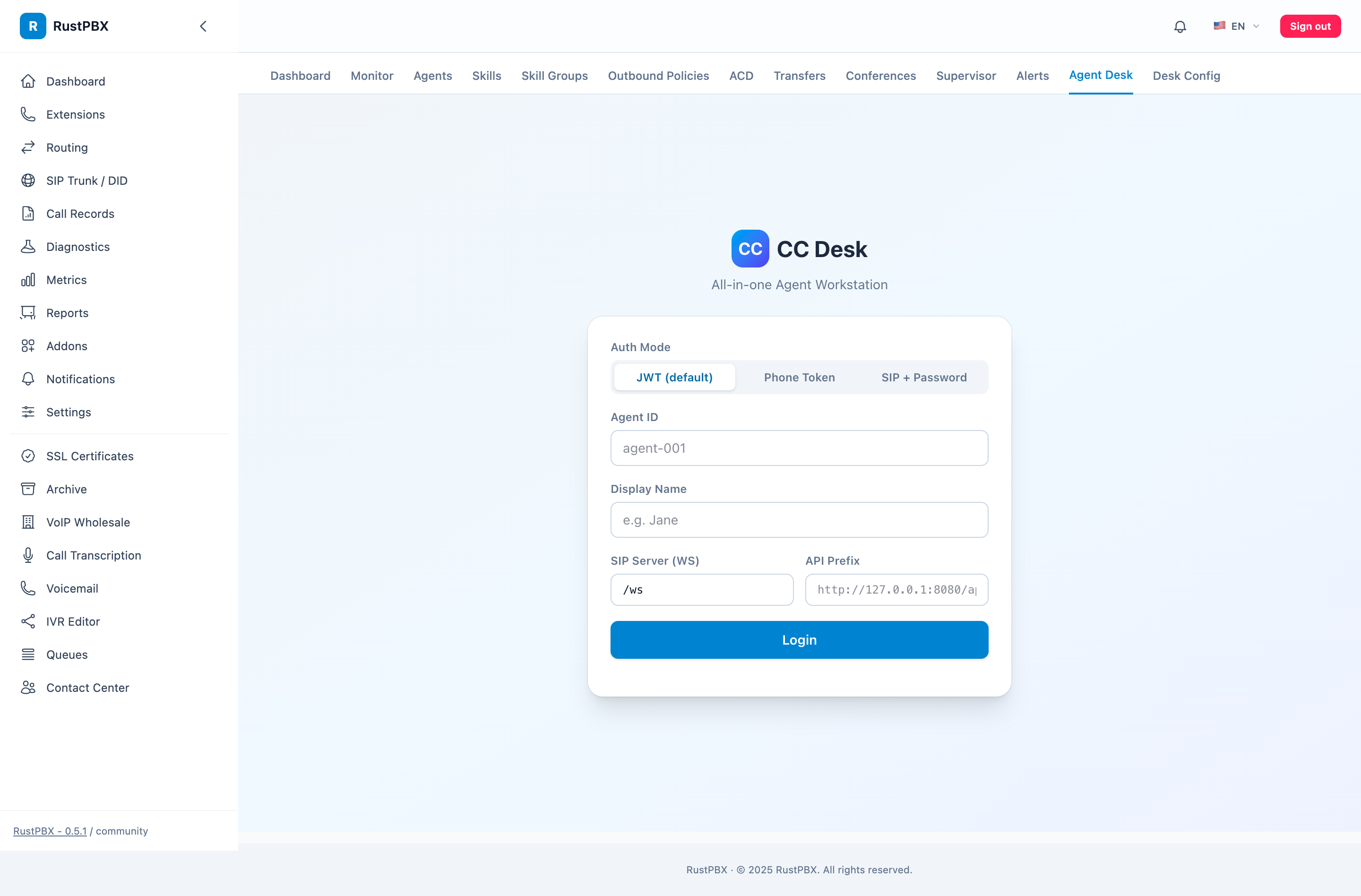
CC Desk ships inside the contact-center addon. Open Console → Contact Center → Agent Desk, pick an auth mode, and log in:
- JWT (default) — console session issues a short-lived JWT; agents already signed into the console log in with one click.
- Phone Token — phone-style auth token issued via
/cc/phone/config. - SIP + Password — the agent’s SIP extension credentials, for deployments that manage extensions directly.
The login form takes the SIP WebSocket URL (/ws on the PBX host) and the API prefix (/api), so the desk can point at any cluster node or load balancer.
1.1 Agent states
Once signed in, the desk drives the standard agent state machine (see Agent Management): Idle → Ringing → Busy → Wrap-up (ACW) → Idle, with break states (away / training / lunch / custom) on the side. The desk shows the current state with a live duration timer.
1.2 Configuration panel
The desk’s config panel exposes per-agent preferences:
- CRM screen-pop URL template — e.g.
https://crm.example.com/customer/${customerId}?phone=${phone}; the desk opens this URL in a new tab at ring time with the caller’s data substituted. - Feature toggles (auto-answer, notifications), ring tone, and device selection.
- Quick-transfer contact list shared from the skill-group config.
2. Screen-Pop (incoming call)
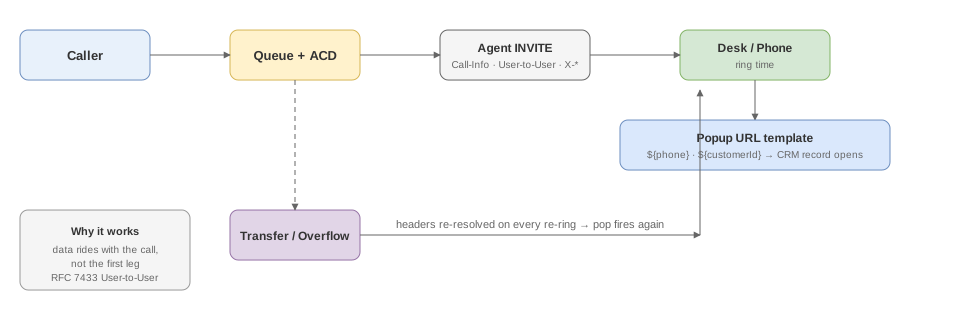
When a queued call is dispatched, the desk pops the customer record at ring time, before the agent answers:
- The ACD stamps the agent INVITE with
Call-InfoandUser-to-User(RFC 7433) headers built from the queue-entry trace — caller number, IVR business type, session id, and anyX-<key>user-data your routing attached. - These headers survive re-rings and overflow (they are re-resolved through dynamic dial-list re-resolution), so the pop does not break when the call bounces between agents.
- The desk matches the popup URL template and opens it —
phone,customerId, and session values are substituted. - Your CRM looks the customer up and shows the record; the agent answers with context.
For CRM systems that listen instead of receive, the same data is available as SIP headers on the ringing leg — one X-<key>: value header per key (the aggregated X-User-Data form is deprecated).
3. After-Call Work (ACW)
When either side hangs up:
- The agent enters Wrap-up automatically; the desk shows a countdown (default 120s, per-agent or per-group configurable — see Agent Management → Wrap-up).
- The disposition/notes popup rides the same UUI channel, so notes stay attached to the call record.
- The agent can finish early (back to Idle) or let the timer expire; no new ACD calls arrive during ACW.
- Calls that were transferred skip the CSAT survey by default (opt-in per skill group) — see CSAT.
4. In-call tools
- Hold / resume with hold music (
queue_hold_musicapplies). - Blind transfer to an extension, or to typed quick contacts — a contact can target an agent, a skill group, or an IVR, with feature codes dialed automatically and hidden in the UI.
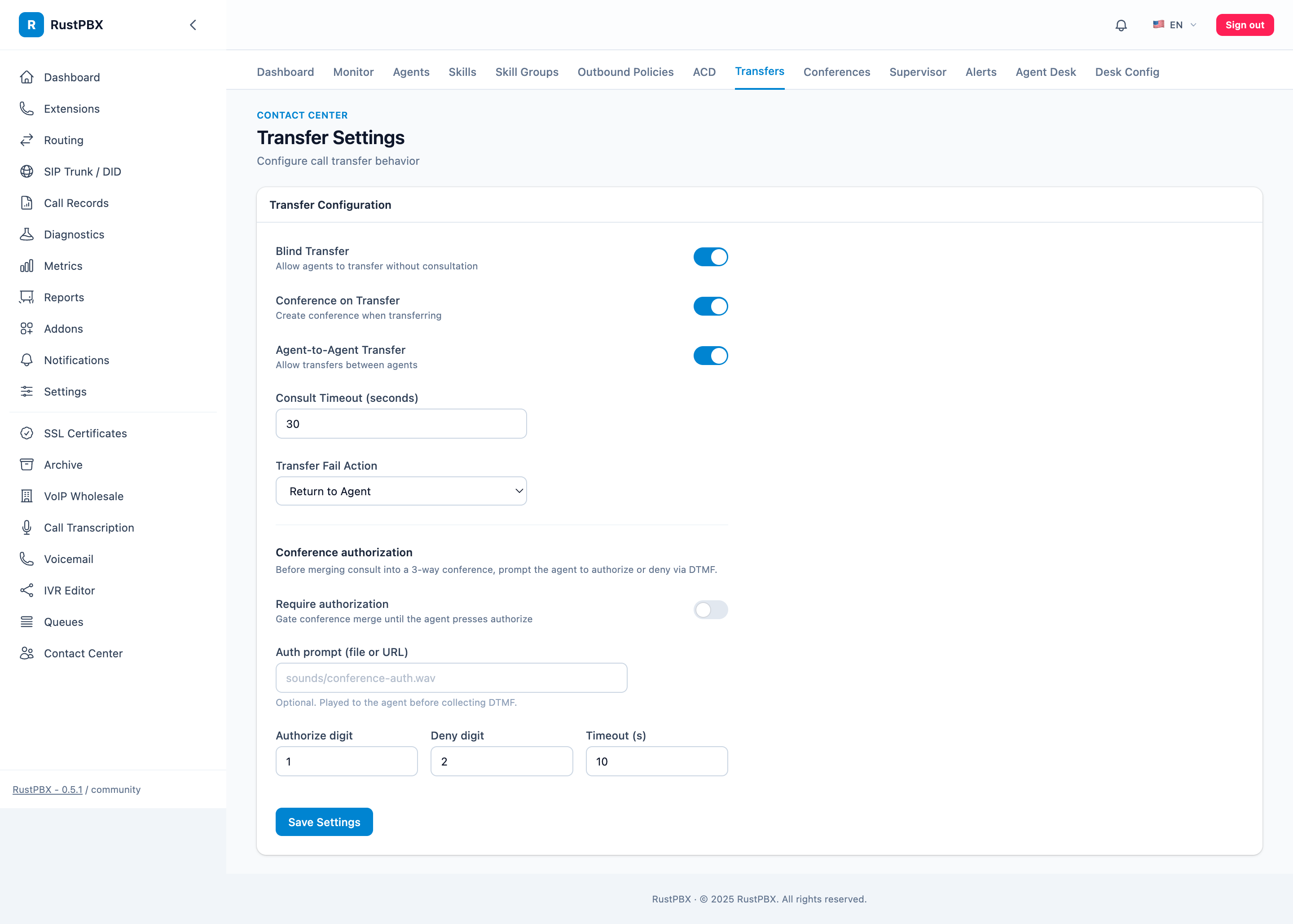
- Consult transfer — call the target first, then complete or switch the talking party; unanswered consults fail cleanly (409) instead of stranding both legs.
- Conference — merge the consult into a three-way call (conference factory URI is configurable per deployment).
- DTMF pad, mute, and outbound line picker (per-agent outbound policies decide which lines/trunks/caller-ids the agent may use — see Agent Management).
5. RustPhone Desk (PC client)
For teams that keep the CRM in a browser and want the phone as a separate always-available app, the restsend-call project provides RustPhone — a Rust-based desktop client for Windows/macOS:
- Two surfaces: the full desk window (contacts, transfers, call history, diagnostics) and the minibar — a 70px strip pinned to the top of the screen with the state buttons, so agents never lose access when the CRM is fullscreen.
- SSO / OTC login — native clients authenticate through a one-time-code exchange instead of embedding credentials; the login window binds to the
--appprocess and closes on callback. - Screen-pop into any browser — RustPhone is browser-independent: it opens the popup URL in the default browser, avoiding the perf ceiling of embedded-iframe CRM integrations.
- ACW with reason capture and per-break-type timing, reported to the agent stats tables.
- In-call controls — hold/resume, consult & quick transfer (typed skill_group/IVR contacts), merge chips, DTMF, local recording indicator.
- Diagnostics panel — network, per-target STUN/TURN probes, sound devices, and current-call media segments (ICE pair, RTP counters, codec); reports upload to
CTI /cc/agents/{id}/logsso support can read them. - Ops-friendly — bootstrap file delivers
sipWsUrl/apiPrefix/iceserverUrlfrom the server, media policy follows agent-config ICE servers, and an auto-update window (default 12:10–13:20, midnight-crossing capable) keeps fleets current without user action.
Point the client at the PBX bootstrap URL and it discovers the rest; agents sign in with their SSO account or agent id, and the client handles SIP registration + CC sign-in in one step.
6. Which client for screen-pop?
| Requirement | Recommended |
|---|---|
| CRM is a web app | CC Desk or RustPhone — both open the popup URL with substituted values |
| CRM must receive data at ring time | Any — consume Call-Info / X-<key> headers on the ringing leg |
| Agents work in fullscreen CRM all day | RustPhone minibar |
| No software installs allowed | CC Desk |